Please note that these Tips and articles may contain, specific features, issues, and opinions many have since been changed, updated, or corrected.
Google Chrome Tip #5: How to see Browsing History
Unlike in Firefox and Internet Explorer, Google Chrome has no dropdown integrated in the back and forward buttons, so how do you view your recent browsing history? Simple! Just click and hold either button, and if there is history, a dropdown menu will appear. You can alternately right-click on either arrow with the same effect.
To view your full browsing history, select the “Show full history” selection from the same menu, select “History” from the “Customize and control Google Chrome” button (the “wrench” icon), or simply press and a full browsing history page will open in a new tab.
Google Chrome Tip #2: Importing Firefox Portable Bookmarks
Currently, Google Chrome will only import Bookmarks from an installed version of Firefox. I use Firefox Portable exclusively, but unfortunately, Google Chrome does not recognize it as an import source. So, if you are a Firefox Portable user, here’s a quick and dirty method of getting all of your existing Firefox bookmarks into Google Chrome….
DISCLAIMER
This process assumes that you are using the “Firefox Portable” application found at http://PortableApps.com, and that you do not have Firefox “installed” on your PC. If you already have Firefox installed on your PC, doing this will probably mess up your current installation to the point that you may need to re-install Firefox and re-build all of your customizations. Be sure to back up your Firefox Portable directory because you don’t want to do anything to mess up your working version. I take no responsibility if you mess things up.
Also, the specific directories listed here refere to Windows XP directories. As I get the information for Vista, I will update this article.
PRELIMINARY
First, close any instances of Firefox that you may have open.
Next, backup your Firefox Portable folder. Just copy it. It may take a few minutes. This will give you a backup should anything happen to your original folder.
Next, download and install Firefox. You can go to http://GetFirefox.com for the latest version. Launch the installer and install Firefox. You can keep all of the defaults as you will be uninstalling it later.
When the install completes, Launch the newly installed version of Firefox once to initialize itself.
Now, close Firefox.
WHERE TO GO FROM HERE
OK, at this point, you can follow two paths depending on how much you want to import into Chrome:
Option 1. Import only Bookmarks into Google Chrome
This first method simply does an export, and import, and anoter import of your Firefox Bookmarks. If all you want to do is make your Bookmarks available in Google Chrome, this is probably the easiest method.
Close the installed version of Firefox, open Firefox Portable, and click the “Bookmarks” menu item and select “Organize Bookmarks”. In the new window, click the “Import and Backup” button on the top and select “Export HTML…”. Give it a filename, and click the Save button.
Now, close Firefox Portable and launch the newly installed version of Firefox. Click the “Bookmarks” menu item and select “Organize Bookmarks”. In the new window, click the “Import and Backup” button on the top and select “Import HTML…”.
When the Import Wizard opens, select “From an HTML file” and click the “Next” button. Select the filename you saved above, and click the “Open” button. Your bookmarks are now imported into the installed version of Firefox.
Take this moment to re-organize your bookmarks to your preferences and then close Firefox.
Finally, open Google Chrome and click on the “Customize and control Google Chrome” button (the Wrench icon in the upper right) and select “Import Bookmarks and Settings”. Select Mozilla Firefox from the dropdown and check only the “Favorites/Bookmarks” checkbox and click Import.
Your Portable Firefox bookmarks are now imported into Google Chrome!
You can now skip down to the CLEANUP section to complete things.
Option 2. Import all bookmarks, Search Engines, Saved passwords, and Browsing History into Google Chrome
This second method will let you import much more personal data into Google Chrome. It’s actually fairly easy. Just be sure you do NOT do this on a previously existing installed version of Firefox as you will mess it up if you do.
With this method, you simply copy your “profile” from your Firefox Portable folder to your installed Firefox folder, launch the installed version of Firefox, and then import into Google Chrome.
You should have a portable version of Firefox and a freshly installed version of Firefox. Close all instances of Firefox.
First, open a Windows Explorer window and navigate to the location of your Firefox Portable folder. You should see the following three folders: plugins, profile, and settings. Open the profile folder.
Now, open another Windows Explorer window and navigate to settings folder for your installed version of Firefox. It’s buried deep–you need to look here: (Note: This path is for Windows XP)
C:Documents and Settings{username}Application DataMozillaFirefoxProfiles
…where {username} is the user you are currently logged into.
You should see a single folder called {something}.default where the {something} is some numbers and letters. This differs from machine to machine. Open that folder.
Now, go back to your first Firefox Portable folder and do a “Select All” on all of the files and then select “Copy”.
Now, go back to the seconf Explorer window (the {something].default folder) and Paste what you copied. A “Confirm Folder Replace” popup will display. Click “Yes to All” and all of the required Firefox Portable data will be copied. This may take several minutes.
Next, launch the installed version of Firefox. Check the Bookmarks to verify that they are there and reofganize them if you want.
Close Firefox.
Finally, open Google Chrome and click on the “Customize and control Google Chrome” button (the Wrench icon in the upper right) and select “Import Bookmarks and Settings”. Select Mozilla Firefox from the dropdown and check the checkboxes of what you want to Import and then click “Import”.
Your Portable Firefox bookmarks, Search Engines, Saved Passwords, and browsing History are now imported into Google Chrome!
CLEANUP
Now, just uninstall yout “installed” version of Firefox by clicking Start > Control Panel > Add or Remove Programs. Select Mozilla Firefox, click the Remove button, and follow the prompts.
Google Chrome Tip #1: Enhanced Find Feature
This is a really subtle one, but Google Chrome improves nicely on the “find” function for finding text within an open page. As in other browsers, pressing <ctrl><f> brings up a find box, however its overall functionality is just a bit different. Read on to see the differences….
First, the find box is integrated unobtrusively in the upper right corner of the page into which you type your search text. It’s clean and looks good. I never liked how Internet Explorer pops up a dialog box. It just gets in the way. Firefox, Safari, and now Google Chrome implement this well with Google Chrome behaving similarly to how Safari does it.

As you type your search text, hits are highlighted in real time and the number of occurrences is displayed in the box. Clicking the Up and Down arrows in the find box will step you through all occurrences highlighting the current one in a bolder highlight.

So far, this is all pretty standard, but look at the scrollbar on the right of the page. The relative locations of the hits is visually indicated by little lines in scrollbar in the same color as the highlight color within the text. This makes it quick and easy to tell at a glance where within the page you will find all of the occurrences.

Its subtle, but surprisingly useful!
Welcome to Google Chrome Tips!
Google Chrome Tips is here to provide some tips and tricks for Google’s new Chrome browser. I will also post some articles related to Chromium, the Open Source version of Chrome. While my browser of choice is still Firefox, Google Chrome offers some exciting features and performence enhancements that really makes it worth a look.
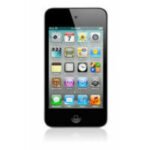
iPod TouchReview: iPod Touch 8GB
I've been a long-time proponent and user of PalmOS PDA's, but lately I have become very by Palm's lack of innovation in their offerings. And innovation is something Palm was regularly known for. For example, consider the Palm V, arguably one of Palm's most innovative designs with its sleek form and powerful (for 1999) capabilities. This was an example of a innovation driving the market.
The PDA trend eventually shifted to "convergence" devices like the Smartphone. But despite their popularity, many of us prefer to have separate devices. Over time, Palm's PDA offerings have really amount to permutations of the same old thing. Now don't get me wrong, I love Palm PDA's. It's just that nothing really new has come out to cause me to want to upgrade or consider a device from another company. So another company appears to be picking up the ball and running with it.

Enter the Apple iPod Touch….
Read on for my review of Apple's iPod Touch…
After poking around on the Internet and reading articles and commentary on Apple's iPhone and iPod Touch devices, I decided to give the iPod Touch a closer look. The iPod Touch is basically an iPhone without the phone, camera, or Bluetooth. What's left is a solid, elegant WiFi-enabled media player that also happens to run other applications. I've never actually owned a portable MP3/media player, so I was entering uncharted territory. The closest I came was the several PalmOS multimedia PDAs that could play MP3 files and videos, but they were primarily PDA's, and media playback often seemed like an afterthought.
Now, before I go too far with this, I need to clarify one thing. While I do understand that Apple markets the iPod Touch primarily as a multimedia player, it really is (or has the potential to be) so much more. The iPod Touch is a powerful, pocket-sized, OS X-based (derived from BSD UNIX), WiFi-enabled, touchscreen computer that is very well-suited to run and manage so much more than just music and video playback. Having significant experience with many PDA's over the years, I feel that the iPod Touch has the potential to become the PDA that could significantly refine the concept of what is a current PDA. It is this kind of innovation that very well could launch Apple far ahead of Palm. It could very well be the "Palm V for the 21's Century", if you will.
Hardware
The iPod Touch is very sleek and very small. It measures just 4.3" x 2.4" x .31" (110mm x 61.8mm x 8mm) and weighs in at 4.2 ounces (120g). Yet, it has a very substantial, comfortable feel, though not too heavy. It is solid and does not bend or creak when flexed. The front of the case surrounding the screen appears to be plastic, and the back of the case is metal–mirrored chrome. The chrome back, like on other iPod models, is very prone to scratching, so you'll want to quickly grab some sort of case to protect it. Overall, it is very solid and very sturdy.
Compare this to the Palm V, and you'll see how advanced it is:

The touchscreen is really nice-looking and solid. Unlike most PDA designs where the touch sensors are on top of the screen, the iPod Touch's sensors are under a screen of solid glass. This means that the touchscreen is very sturdy and not as easily scratched as are plastic-based touchscreens. Obviously, glass can still scratch and wear, so simple a screen protector is all that is really needed for decent protection.
With the addition of a simple sleeve or cover and a screen protector, there is no reason why the iPod Touch can't be "front-pocketable". If the pocket you put it in has keys, coins, or other metal objects, you may want a more durable case. In any case, it's so small that you are more likely to have it with you. Also, a word of caution: I personally never "back-pocket" any PDA simply because I don't want to risk damage.
WiFi
Apple's inclusion of WiFi is very well done. The Settings screen that controls connectivity is very intuitive, and also serves as a basic "stumbler" application showing you all avaiilable WiFi Access Points within range, bith open and locked. The settings are quite customizable, and once set to your liking, connectivity is a snap. I have used a couple WiFi-enabled PDA's and the iPod Touch is by far the fastest and easiest to use, and so far, the most reliable. Its integration is seamless.
If I could change one thing about Apple's WiFi implementation, it's that they did not provide any simple way to toggle WiFi on or off. Leaving it on will drain your battery, so being able to toggle it on or off is essential. Yes, you can do it through the Settings screen, but why don't they include a Home page icon that will do it simply and wuickly, similar to excellent the WiFiSwitch application for Jailbroken devices?
And as long as I'm complaining, the my only real complaint with Apple's hardware choices is the lack of an external speaker. The included transducer simply doesn't cut it. Other than some very basic system sounds like some clicks and very soft-sounding alarms, you need earbuds or headphones to hear any real sound. I realize that other iPods don't have external speakers, but this is quite limiting, in my opinion, given the advanced capabilities and potential of this device. How many times have you wanted to play a quick audio or video clip for someone, but don't because you either don't have or don't want to hassle with earbuds? Having an external speaker would really make this so much easier.
User Interface
The iPod Touch's User Interface is very responsive and very well-suited to fingertip navigation. For example, scrolling is not done by the typical tapping or dragging of a scrollbar. Instead, you just use an up or down "flick" gesture on the screen, and the content scrolls–it's very intuitive. And then there's the "Multitouch" gestures that make interaction fun and easy. Doing a "pinch" motion with two fingers on the screen will zoom in where applicable, and doing a "spread" (or "reverse pinch") will zoom you out. In many cases, "double-tapping" will do a quick zoom in, and "double-tapping" again will quickly zoom you back out.
Another nice feature is an automatic "Landscape" mode that rotates when you tilt the device. There is an accelerometer built-in that detects when you tilt the iPod Touch, so when you turn it on its side, if the application supports it, the screen will rotate in that direction to a landscape format. This is excellent for functions as Cover-Flow and Web browsing.

Text input is done with an on-screen keyboard–there is no handwriting recognition here. Surprisingly, the implementation works very well with the fingertip. You won't get the speed of thumb-typing on say, a Treo or a Blackberry, but it's quit usable. My fingers occasionally tap the wrong letter, but correcting is easy. The only real shortcoming of text input is the absence of any Cut and Paste functions, though
it is rumored tha
t a forthcoming firmware upgrade will add this.
Software
The
iPod Touch was originally marketed as an innovative media player, but it does include several other applications like a Calendar, Contacts, and Web browser that bring it closer to the PDA world. Here is a brief description of the included applications:
Music
The heart and soul of all iPods is its ability to play music. The iPod Touch really shines with a slick, intuitive interface. Just sync your music files through iTunes, and you can browse by artist, album, song, genra, and more.
There is also an alternate view called "Cover Flow" that takes advantage of the iPod Touch's landscape mode. While in the music app, tilt the device 90° in either direction, and you see a fanned-out cover-art display of all of your albums. Doing a "flick" gesture left or right scrolls through the animated display, so you can quickly navigate to any alnum. And tapping on a cover "flips" it over revealing the songs on that album. Tapping any of the songs begins playback.
My only complaint with Cover Flow is that it appears to sort the albums by the name of the first artist listed on the album, not album name. For single-artist albums, this is a non-issue, but it can be confusing when dealing with compilation albums. I wish there was a Settings option to define how Cover Flow sorts the albums.
On not-so-know feature allows you to control music playback and volume from within any application or even when the device is locked. Just press thr Home button twice in seccussion, and a small music control pad will pop up. Given that the iPod Touch does not have any external volume controls, this is an excellent and convenient solution.
Videos
Like several other iPod models, the iPod Touch will play videos. From short clips to full-length movies, they look and sound great. Videos can be purchased through iTunes or converted using either iTUns or several third-party applications. Browsing the videos is straight forward, and playback offers full control. In my opinion, compared to the Palm OS PDA's I have used to play back video, the iPod Touch leads the pack.
Photos
The Photos application launches displaying scrollable list of "categories" derived from the directories the photos are stored in. Tapping a category brings up a scrollable list of thumbnails. tapping a thumbnail will display the photo full-screen. Like several other applications, rotating the iPod Touch will put it into Landscape mode whci may make some photos easier to see. You can use the "flick" gesture to scroll, the "pinch" gesture to zoom in or out, and double-tapping will zoom in and out. When zoomed, you can pan around. You can also view the photos as a slideshow.
From within the Photos application, you can select one of the pictures to be used as your Lock-screen background. It's a great application store and show off your pictures. Images must be synced through iTunes.
Calendar
The Calendar app is a modest appointment calendar that will sync with iCal or Outlook. It does not include ToDo's or Notes, but as an appointment manager, it works well. I do wish, however, that it would sync wirelessly with Google Calendar.
Contacts
The Contacts application is fairly complete offering lots of fields for your needs. It syncs with iCan and Outlook. I don't use it that mutch, but the UI is very slick and friendly.
Safari
The Safari Web browser is simply amazing. I have used Web browsers on several Palm OS PDA's, and there is simply no comparison. Safari beats them all hands-down in all counts. Pages render quickly and accurately in Safari, and best of all, they aren't proxy-hobbled or stripped pages–they are the real pages. There is no Flash support, but it is rumored that a forthcoming firmware update will add this feature.

Of course, on the small sreen of the iPod Touch, many pages are simply unreadable, but this is quickly and easily resolved by the using the iPod Touch's advanced User Interface. First, you can tilt the device into Landscape mode giving you a wider, more readable display. This is all you need to do in many cases. You can also double-tap on any part of a page, and it will zoom that section to fit the screen. Double-tapping again will zoom you back out. The "pinch" gestures will zoom you in and out as well. A "Flick" gesture up or down will scroll in the desired direction, and if you are zoomed in, tapping and holding then dragging will pan the screen. And to select a link, just tap on it. Internal links load in the same page, while external links take advantage of Safari's Multi-Page view. Safari can maintain several open pages, conceptually similar to Firefox and IE7's Tabs, except pages are chosen through a thumbnail-like viewer. It's a very fresh and intuitive way to navigate Web pages.
Obviously, getting the Web pages requires WiFi connectivity, but the pages are still viewable while offline–almost. Safari's page cache seems to be dependent upon available memory, so if you have more than a few pages open, or have one or two large pages open, if you navigate to another application and return to Safari, the pages may be lost. Unfortunately, what or how much is stored is not predictable, so you cannot rely on having pages always available offline. I would like to see Apple provide an enhancement to Safari that would provide for viewing of saved pages while offline.
Also, Safari displays Adobe .PDF file in an excellent rotatable, zoomable viewer, but you must get the file online, as Safari prevents viewing any local files (file:///…) Of course, there is currently no "official" way to store .PDF files locally, so this may not be an issue.
YouTube
I haven't used this app much, but it provides you with direct access to YouTube videos. The interface is solid, quick, and you have full control over playback. You can browse various video lists or search for specific videos. YouTube fans should enjoy this.
iTunes WiFi Music Store
This slick little application lets you connect directly to your iTunes account while connected via WiFi. You can browse and search for songs and albums, you can listen to previews, and you can purchase and download the song or album immediately with the purchase being charged to yout iTunes account. You cannot access PodCasts or Videos through the app, but for music lovers, this should give you what you want.
So, there you ahve the basics of what the iPod Touch is all about. If you would like an even more detailed hardware and software review, jump over to over at The Gageteer's site: http://the-gadgeteer.com/review/apple_ipod_touch for their excellent review.
Google Notebook Tip #3: Clipping Web Pages
Google Notebook provides an easy and fun way to clip sections of Web page right into your Google Notebook without leaving the page you are browsing. It's the "Google Notebook Internet Explorer Extension" for Internet Explorer, and the "Google Notebook Firefox Extension" for the excellent Firefox browser. Read on to see what the extension does and how to make the most use of it…
When you connect to the Google Notebook site and login, if you have not already installed the browser extension, you will be prompted to do so. Follow the instructions on the screen to download and install it. The installation should be pretty seamless. Once installed, you will probably need to close and restart your Web browser.
I use the Firefox Web browser almost exclusively, so I'll be using its extension as a reference, but the Internet Explorer extension should function almost identically.
The first thing you should notice after restarting your Web browser is a new icon in the Status bar. It's a little blue notebook icon labeled "Open Notebook". Clicking on this opens a small window at the bottom of your browser. It lists all notes in the most recently opened notebook. Here are some basic navigation features:
· Clicking on the "expand" triangle icon on any of note will expand it for easy viewing.
· Double-clicking an existing note opens it in the note editor. Like the full-screen version, you can select multiple notes and perform various "Actions" on them.
· You can also click the "Add note" button to enter your note.
· Clicking the "expand" icon to the left of the "Add note" button will open a list displaying all of your Notebooks. Clicking on one of these entries will open that notebook.
OK, so now you have the basics, but just how is this any more useful than the full-page version? Well, the first obvious answer is that it is displayable while browsing any Web page. Big deal, right? Well, as the TV commercials say, "But wait, there's more!"
The real power comes while browsing a page. Open up any favorite Web page and right-click on the page. In the context menu, you should see an entry, "Note this (Google Notebook)". Click on this, and the Google Notebook extension will open the notebook window and create a new note for you. The note consists of the words "Empty note" as the title, and a link to the page you are browsing. If you edit that note, you can jot down any notes about that page. This can be very useful for later reference. The handy thing about this is that it automatically maintains the URL of the page you are browsing, so you don't have to mess with copying and pasting. It just works!
There's also another variant that's even more powerful. Ok, so you created a note that points to a Web page, and you entered some textual notes about the page. But what if you want some text and graphics from the page itself in your note? The Google Notes extension lets you clip sections of formatted page content. Navigate to any Web page and highlight any section of it like you were going to copy it. You can include text, links, images, etc. After you highlight a section of the page, right-click the highlighted section. Again, you should see that "Note this (Google Notebook)" entry. Google Notes will create a new note for you with the page URL as above, but this time, it inserts into the note whatever you had highlighted. It's fully editable, so you can add to it, modify it, or whatever you want.
The Google Notebook Extension can add lots of power to your Web surfing experience by enabling you to easily and seamlessly clipping sections of Web pages directly into Google Notebook. The uses are only limited by your imagination!
Google Notebook Tip #2: Creating New Notes
Creating a new Note within a Google Notebook is very simple: Just open Google Notebook and click on the "Add note" button. A simple editor opens where you can type in your note content. You can format it using some basic editing tools. When you are finished, click the "Save" button. Simple as that! But this, of course, is not the only way to create a note! Read on for some other ways to create notes…
Copy & Paste
You can copy both plain and formatted text from many sources into Google Notebook. This can be as simple as text copied from Notepad or your favorite text editor, to more complex, formatted text from sources such as Word and Excel documents, and even Web pages. Simply Copy the text you want to store, switch to Google Notebook in your Web browser, and Paste into the note editor. Plain text is formatted based on the current editor settings, and formatted text will be pasted with its formatting retained.
One nice feature is that Excel cells will past as HTML tables. Just note that though formatting should retained, it should be close to the original, but may vary slightly.
Web Clipping
You can also install an optional extension for Internet Explorer or Firefox. This integrates slick functionality that lets you much more easily select and clip sections of Web pages. I'll be posting a tip with more details on this.
Currently, these are the methods of adding content to a Google Notebook. If Google adds additional methods, I will post them here!
Google Notebook Tip #1: What is Google Notebook?
Google Labs has released their new Google Notebook application which is a simple, online repository for storing notes, images, and "clips" of Web pages. With its optional browser extensions (for Internet Explorer and Firefox only for now) you can seamlessly add content to your Google Notebook while surfing the Web. Read on for some details on what Google Notebook is, what you can do with it, and how to get started…
What is Google Notebook?
Google Notebook is a Web-based application that lets you enter and manage notes. While that may sound simple, (and it is) it is a powerful and handy tool to let you store and manage countless bits of content that is easily accessible whenever you have Web access.
To better understand Google Notebook, think of the Google Notebook screen as a bookshelf. On that bookshelf, you can store one or more Notebooks, and within each Notebook, you can store one or more Notes. Notes can contain simple text content to complex Web page clippings. Notes can be ordered by moving them around, and they can be categorized by creating Section Headings. What content you include in your notes is completely up to you, as is how you organize your notes.
In later tips, I'll be discussing some simple operations such as selecting and moving Notes, how to clip Web pages, and some simple navigation and management operations. I'll also be including some tips on how to organize and make the most of your notes.
So, what's it good for?
Let's start with a short list of some things you can do with Google Notebook:
· Store recipes
· Store school notes
· Create online shopping lists
· Create a repository of your favorite movies
· Plan a trip
· Maintain a list of your favorite Web sites
· Keep a journal
· Write a book
This list is obviously not exhaustive–you are really only limited by your imagination. Just play around with it, and ideas should come to you!
But Google Notebook does have some limitations. Here is a list of some things that you cannot do with Google Notebook:
· Store "objects" like programs, MP3 files, or standalone images
Google Notebook is not a file repository–it is a notebook. For storing things like programs and MP3 files, you will have to use other online storage options. For digital photos, check out Google's Picasa Web, a really nice photo album application that integrates with Google's Picasa2 Desktop application. It's at: http://picasaweb.google.com
· Print individual notes
I do have a workaround for this, but by default, you can only print entire notebooks.
· Make notebooks semi-private
A notebook is either private (viewable only through your Google account) or public (accessible to anyone.) There is no facility to restrict viewing Notebooks to specific users.
· Email Notes or Notebooks
There is currently no facility to email your notes or notebooks. The best you could do is to make a Notebook public and then email the URL. Just remember that a Public Notebook is viewable by anyone.
· Export Notes
Short of copying and pasting notes into another application, there is currently no facility to export notes. You could, however, select the "Print notebook" from the "Actions…" dropdown, to create a nicely formatted HTML page which you could save locally and than edit it using your favorite HTML editor.
Again, this list is not exhaustive. The Google developers continually work to improve all of their offerings, so I would bet that in the future, you will see refinements and additional features worked into Google Notebook. My recommendation is if you have suggestions for new features, feature changes, or to report bugs, go to the Google Notebook support page located at: http://www.google.com/support/notebook and log your request. Google will obviously not include every suggestion into Google Notebook, but they are noted for listening to their user base, so unless you voice your feedback, they won't know what you want!
How do I get started?
Point your Web browser at http://google.com/notebook and follow the instructions. IN short order, you will be ready to create new notes! But first, you have to complete a couple steps:
First, you must have a Google account in order to use Google Notebook. This provides authentication to keep notes private. If you already have a Gmail account, you are good to go. If not, just follow the instructions to create a new account.
The browser extension. Google wants you to install a browser extension in order to more efficiently create and manage notes, but this is optional. If you want to use the extension, by all means, download and use it. The extension works very well, and makes adding Web clippings a snap. I'll be posting a tip detailing its features and functions.
But for now, we want to skip this, so when you are prompted to download the extension, just look for the "Continue to your notebooks »" link and click on it. This will bypass the browser extension download and take you directly to your Notebooks. This is also useful for those times when you are using a public-access terminal. In that case, you won't want to install the extension (and probably won't have permission to do so) because you don't want your personal information to be tied to that device.
You should now be looking at the Google Notebook screen! Click on the "Add note" button, and you are on your way to creating and managing notes! I'll be posting more details about the functions and features of Google Notebook, so stay tuned for more Google Notebook tips and tricks!
Two Points Of Caution
Like any Web-based service, Google Notes is not necessarily a completely secure repository. My suggestion is that if you have sensitive information, you would probably be wise not to store it on Google Notes. This is not to say that Google takes security lightly–far from it. Just assume that anything stored online, especially if it is unencrypted, is simply not secure.
Second, please remember that, as with all online applications, many of Google's applications are still under development, and as such may occasionally be prone to bugs or problems. I recommend that you not store critical or irreplaceable information online unless you also have an alternate online or offline backup. Committing irreplaceable information to an online service–especially one still in development–is asking for problems.
JimsTips.com now looks great on the iPhone and iPod Touch! Get access to all of the latest Tips on the go!